How to Solve the WIFI (Wireless Networks) Intermittency Issues?
- 时间:2020-09-17 10:57:36
- 分类:网络文摘
- 阅读:149 次
If you experience WIFI (Wireless Networks) Intermittency issue, then keep reading below.
The Intermittency issue means that your devices (smartphones, or laptops) occasionally lose the wireless connections (WIFI) for a few seconds (e.g. 10 to 15), then they often got reconnected. When this occurs, your browser will show a Network-not-connected error page and it can be solved by waiting a few seconds and refresh.
The underlying causes is possibly that: Your wireless router supports both 2.4G and 5G WIFI, but both networks are broadcasting the same Wireless SSID (Your 5G WIFI is synchronizing with 2.4G). Therefore, the devices sometimes will automatically switch to another WIFI (with the same SSID) for better performance. The automatic WIFI switching is the root cause of the intermitenncy problem.
The solution is to change the SSID so that the SSID of the 2.4G and 5G WIFI networks are different.
For example, the Plusnet Fibre Broadband has the following 5GHz Wireless Network configurations.
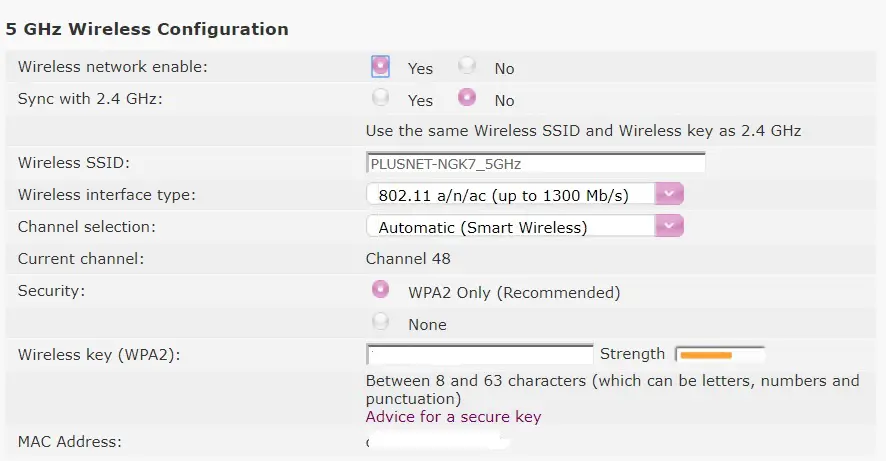
5g-wireless-configuration
Solve the WIFI Connection Intermittency Problems by Changing the 2.4/5G WIFI Channels in Wireless Router
If you have any issues doing this via Wireless, we recommend trying to do it via Ethernet cable instead.
You should come to a page with information about your connection, click ‘Advanced Settings’ at the top and it will ask you to sign in with a Password. This is located on the back of your router under ‘Admin Password’
Select the option for ‘Wireless’ followed by ‘5 GHz Wireless’. What we want to do to begin with is turn ‘Sync with 2.4 GHz Wireless’ to ‘Off’ and update the SSID to be different. The easiest way would be to add ‘-5G’ to the end so it is identified as its own connection.
Once this is changed, we will need to keep an eye on it for a day or 2 to see if the issue continues. If it does, the next step would be to change the wireless channel.
Following the above guide to get to your ‘Advanced Settings’ page, you will need to change the settings within the 2.4 GHz Wireless tab and the 5 GHz Wireless tab.
Under the correct heading, you will need to find ‘Channel Selection’ on the list and change this from ‘Automatic’ to any one of the other channels, This can also need doing under ‘5 GHz Wireless’ to cover both signals.
Give it 3-4 hours of testing to see if the issue still persists and try to change the channel again if you see little or no improvement.
I would recommend first trying channels 1, 6, and 11 to get a good indication of the best channel to use and if you continue to have issues you can narrow this down by going through channels 2 – 5 or 7 – 10.
Any Wireless channel is prone to interference and can be caused by a number of factors, changing this channel will usually resolve the issue, if problems are still persisting after this then it is likely that something else is causing the issue.
–EOF (The Ultimate Computing & Technology Blog) —
推荐阅读:全新认识冬季当家菜大白菜的营养价值 那些被人们误传的补充某种营养的食物 阿胶产品乱象:原料中被混入骡皮马皮 时令水果橘子橙子柚子营养价值大比拼 中医食疗:滋阴固肾的6款经典补粥 美味鸭肉的保健功效与养生食用方法 让枸杞中的营养成分吸收更好的吃法 多吃葱蒜少吃腌制食品防止胃病癌变 能够给肠道进行清洁排毒的常见食物 饮水养生:喝蜂蜜水的两个最佳时间
- 评论列表
-
- 添加评论